Short answer: Meta Business Suite is Meta's free dashboard for running a Facebook Page and an Instagram account from one place. You use it to schedule posts, Stories and Reels, answer messages and comments in a single inbox, read insights, and start simple ads. It is available at business.facebook.com and as a mobile app for iOS and Android.
Key Takeaways
- What it is: the day-to-day workspace for Facebook and Instagram: content, inbox, insights and basic ads.
- What it costs: nothing. You only pay for the ads you run.
- What it is not: it does not replace Ads Manager for serious campaigns, and it is not where ownership and permissions live. That is the business portfolio (formerly Business Manager).
- Who needs it: anyone who posts for a business on both Facebook and Instagram, or who shares the work with a teammate or an agency.
Meta has renamed and rearranged its business tools so many times that the names alone cause confusion: Business Suite, Business Manager, business portfolio, Ads Manager, Events Manager, Creator Studio. This guide explains what Meta Business Suite actually does, how to set it up, what each section is for, where it stops being enough, and how it fits with the other tools.
What is Meta Business Suite?
Meta Business Suite (formerly Facebook Business Suite) is a free tool that brings your Facebook Page and Instagram professional account into one dashboard. Instead of switching between two apps, you see notifications, messages, scheduled content and performance for both in the same place.
It is built for routine work: publishing, replying, and checking how things are going. It is the tool a shop owner, a social media manager or a small team opens every morning.
Business Suite, business portfolio, Ads Manager: which is which?
| Tool | What it is for | Typical user |
|---|---|---|
| Meta Business Suite | Posting and scheduling, inbox, insights, simple ads | Owner, social media manager |
| Business portfolio (formerly Business Manager) | Who owns which Pages, ad accounts, Instagram accounts and pixels; who has access to what | Admin, agency |
| Meta Ads Manager | Building, editing and reporting on advertising campaigns in full detail | Advertiser, media buyer |
| Events Manager | Meta Pixel, Conversions API and the events your site or app sends | Developer, marketer |
| Commerce Manager | Product catalogues and shops | E-commerce team |
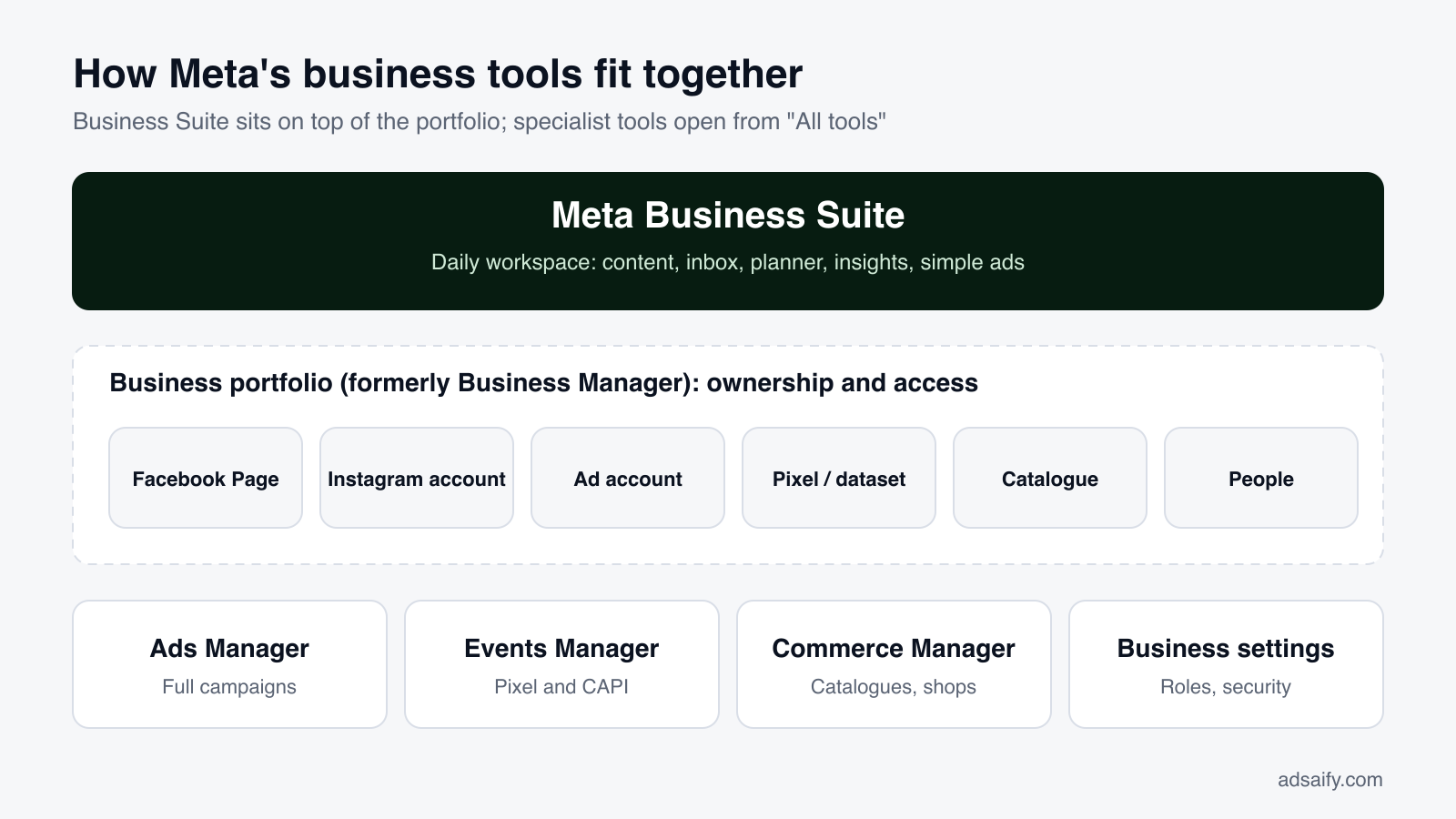
The simplest way to hold it in your head: the business portfolio is the container that owns your assets, and Business Suite is the workspace you use on top of it. Meta renamed Business Manager to "business portfolio" in 2024; you will still see the old name in many guides and in some corners of the interface. Ads Manager, Events Manager and Commerce Manager are specialist tools that you open from the All tools menu inside Business Suite.
How to set up Meta Business Suite
- Log in. Go to business.facebook.com on a computer, or install the Meta Business Suite app. Use the personal Facebook profile that manages your Page. Your personal profile is only a login; visitors to the Page do not see it.
- Create or choose a business portfolio. If you already have a Page, Meta usually creates a portfolio for you. Otherwise, create one with your business name and work email.
- Add your Facebook Page. In Settings, add a Page you already own, request access to one owned by someone else, or create a new one.
- Connect Instagram. Your Instagram account must be a professional account (business or creator). Connect it under Settings > Accounts > Instagram accounts and log in to confirm.
- Connect WhatsApp (optional). If you use the WhatsApp Business app, you can link the number so WhatsApp conversations appear in the same inbox.
- Add people. Invite teammates by email and give each one only the access they need. Avoid sharing one password between several people.
- Turn on two-factor authentication. Business accounts are a frequent target for takeover attempts. Require two-factor authentication for everyone in the portfolio.
The main sections, and what to use them for
Home
A summary of both accounts: recent posts, to-do items, messages waiting for a reply, and headline numbers. Useful as a morning check, not for analysis.
Inbox
Messenger messages, Instagram direct messages, and comments on Facebook and Instagram posts in one list (plus WhatsApp if you connected it). You can assign a conversation to a teammate, add labels and notes, save replies you send often, and set automated messages such as an instant reply, an away message or answers to frequent questions. For any business that sells through messages, this section alone justifies using the tool.
Planner
A calendar of everything published and scheduled. You can create a post, Story or Reel, choose Facebook, Instagram or both, and schedule it for a specific time. Planner also suggests times when your followers have recently been active. Scheduling a week of content in one sitting is the single biggest time saver here.
Content
A list of all your posts, Stories and Reels with their individual results, including drafts and scheduled items. This is where you find a post from three months ago and see how it performed.
Insights
Reach, content interactions, follower growth and audience details (age, gender, top cities and countries) for Facebook and Instagram side by side. You can compare periods and export the data. Look at trends over weeks rather than single days.
Ads
A simplified way to advertise: boost a post, or create an ad with a goal, an audience, a budget and a duration. It is quick, and it hides most of the settings. For anything beyond a simple boost, use Ads Manager.
All tools
The menu that leads to everything else: Ads Manager, Events Manager, Commerce Manager, Audiences, Billing and Business settings.
Desktop or mobile app?
- Desktop is better for planning: the calendar, bulk scheduling, insights and settings are easier on a large screen.
- The mobile app is better for reacting: replying to messages and comments, posting on the go, and getting notifications.
Most people end up using both: plan the week on a computer, handle the inbox on the phone.
Where Business Suite stops being enough
Business Suite is good at organic work. Its limits show up when you start spending real money on ads.
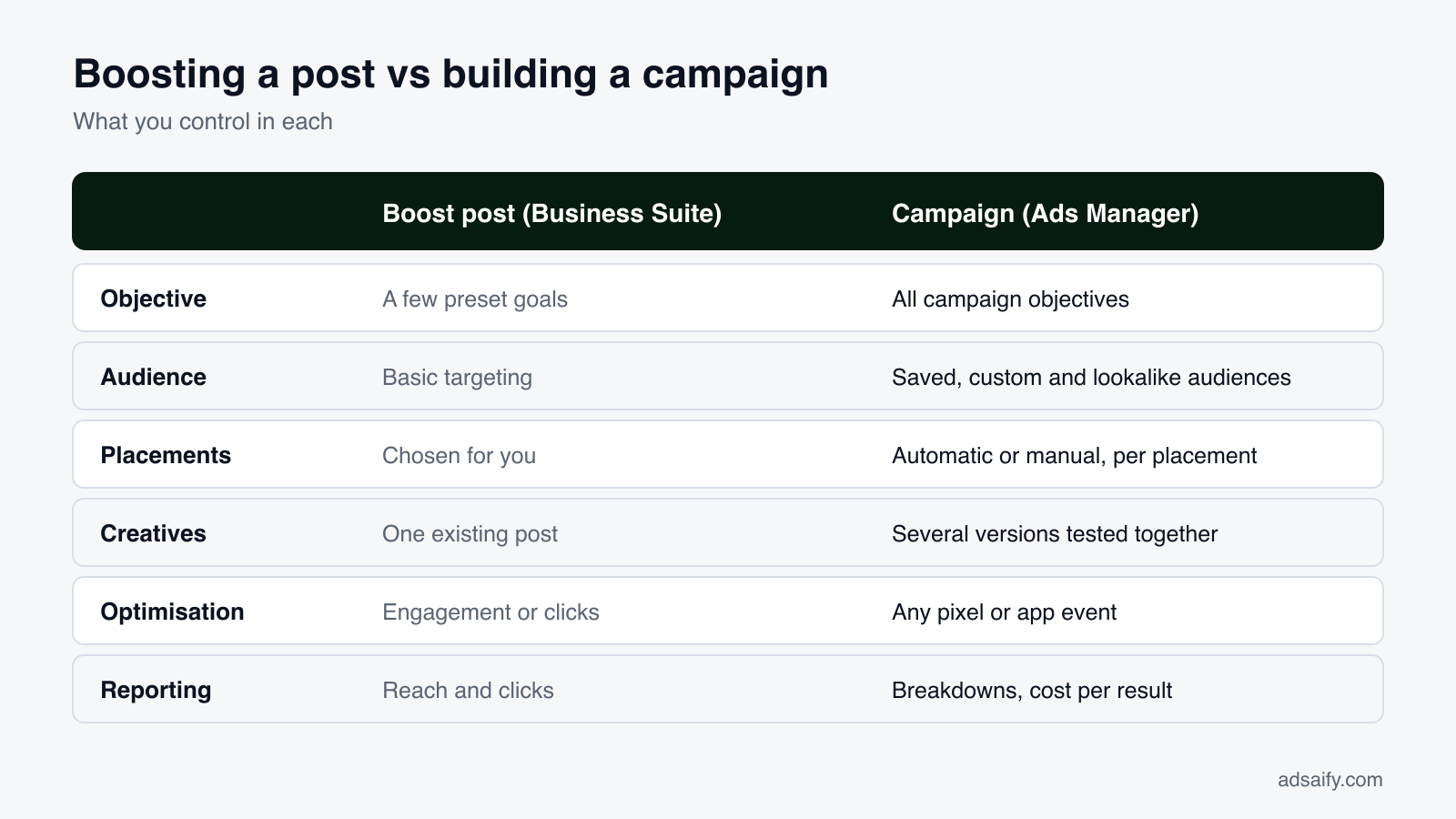
- Few campaign controls. The Ads section gives you a handful of goals and basic targeting. Campaign objectives, placements, optimisation events, bid strategies and structured testing live in Ads Manager.
- One ad at a time. Boosting creates a single ad from a single post. You cannot easily run several versions against each other.
- Limited reporting. You see reach and clicks. Breakdowns by age, country and placement, cost per result and conversion data are in Ads Manager.
- Only Meta platforms. You cannot schedule to TikTok, LinkedIn, X or YouTube. If you post everywhere, you need another scheduler as well.
None of this is a flaw. It is a tool for running your presence, not for media buying.
From Business Suite to real campaigns
The usual path is: post regularly, boost a post that did well, then discover that boosting does not give you control over who sees the ad or what you are paying for. The next step is Ads Manager, which is powerful and takes time to learn: objectives, ad sets, audiences, placements, pixels, conversion events, naming conventions and budgets all have to be set correctly by hand.
Adsaify sits at that step. You paste your website address; it reads the site, drafts the campaign with ad copy, creatives and audience, and publishes it to your own Meta ad account, where it appears in Ads Manager like any campaign you built yourself. You keep ownership of the ad account, the Page and the data. It does not replace Business Suite: you still use Business Suite for the inbox and the content calendar, and Adsaify for getting campaigns built and launched faster. Create a free account to try it.
Why does Meta Business Suite matter for a business?
The reason is scale. Meta reported that 3.60 billion people used at least one of its apps (Facebook, Instagram, WhatsApp, Messenger) every day on average in June 2026, up 3% from a year earlier. For most businesses, some part of their customers is in that number every day, and Business Suite is the free control panel for reaching them on two of those apps.
Source: Meta, Second Quarter 2026 Results.
What does it replace in practice?
| Without Business Suite | With Business Suite |
|---|---|
| Posting separately in the Facebook and Instagram apps | One post composed once, published or scheduled to both |
| Messages in Messenger, Instagram and comment threads checked one by one | One inbox, with assignment and saved replies |
| Remembering to post at the right time | A calendar with scheduled content for the week |
| Two sets of statistics with different layouts | Side-by-side insights for both accounts |
| Sharing a password with a colleague | Individual access for each person, removable at any time |
Who should have which access? Roles and permissions
Access is the part most businesses get wrong, usually by making everyone an admin. Meta separates access to the portfolio from access to each asset inside it.
| Level | What it allows | Give it to |
|---|---|---|
| Full control of the portfolio | Add and remove people, assets and payment methods; delete the portfolio | The owner and one trusted backup. No one else. |
| Partial access (portfolio) | Work only on the assets they are assigned | Employees and freelancers |
| Page: content | Create, schedule and delete posts, Stories and Reels | Content creators |
| Page: messages and community activity | Reply to messages and comments, remove unwanted comments | Customer service |
| Page: ads | Create and manage ads for the Page | The person or agency running campaigns |
| Page: insights | View performance without changing anything | Managers, accountants, clients |
| Partner access | Lets another business (an agency) work on your assets without owning them | Agencies. You keep ownership and can revoke it. |
Two rules prevent most disasters. First, the business should own its assets: the Page, the ad account and the pixel belong in your portfolio, and an agency gets partner access to them, not the other way round. Second, review the people list every few months and remove anyone who has left.
How do you use the inbox for customer service?
For a business that sells through messages, response time is the metric that matters, and the inbox has four features that shorten it.
- Instant reply. An automatic first message that confirms you received the question and says when a person will answer. It sets expectations; it does not replace a real answer.
- Away message. Sent outside your working hours, with the time you will be back.
- Frequently asked questions. Up to a handful of questions shown as buttons at the start of a chat, each with a prepared answer: delivery time, returns, opening hours, price list.
- Saved replies. Your own shortcuts for answers you type every day. A good starting set: delivery times and cost, how to order, payment methods, return policy, size guide, address and hours.
Use labels to mark conversations (new order, complaint, wholesale enquiry) and assignment so that two people never answer the same customer. Keep automated messages short and honest: say that it is an automatic message and when a human will respond.
How does Business Suite work for e-commerce?
If you sell products, three additional pieces connect to the suite.
- Catalogue — your products are uploaded to Commerce Manager, either by hand, from a data feed, or through a platform integration such as Shopify or WooCommerce.
- Shop and product tags — with a catalogue connected you can tag products in posts, Stories and Reels, so viewers can open the product from the content.
- Pixel and Conversions API — set up in Events Manager so Meta can see which visits and purchases came from your content and ads.
- Content plan — schedule product posts in Planner around launches, restocks and seasonal dates.
- Inbox — answer pre-purchase questions quickly; many orders are decided in a message thread.
- Insights — check which products and formats bring reach and link clicks, then make more of those.
Shopping features vary by country and change often, so check which ones are available in your market inside Commerce Manager before planning around them.
What does a good weekly routine look like?
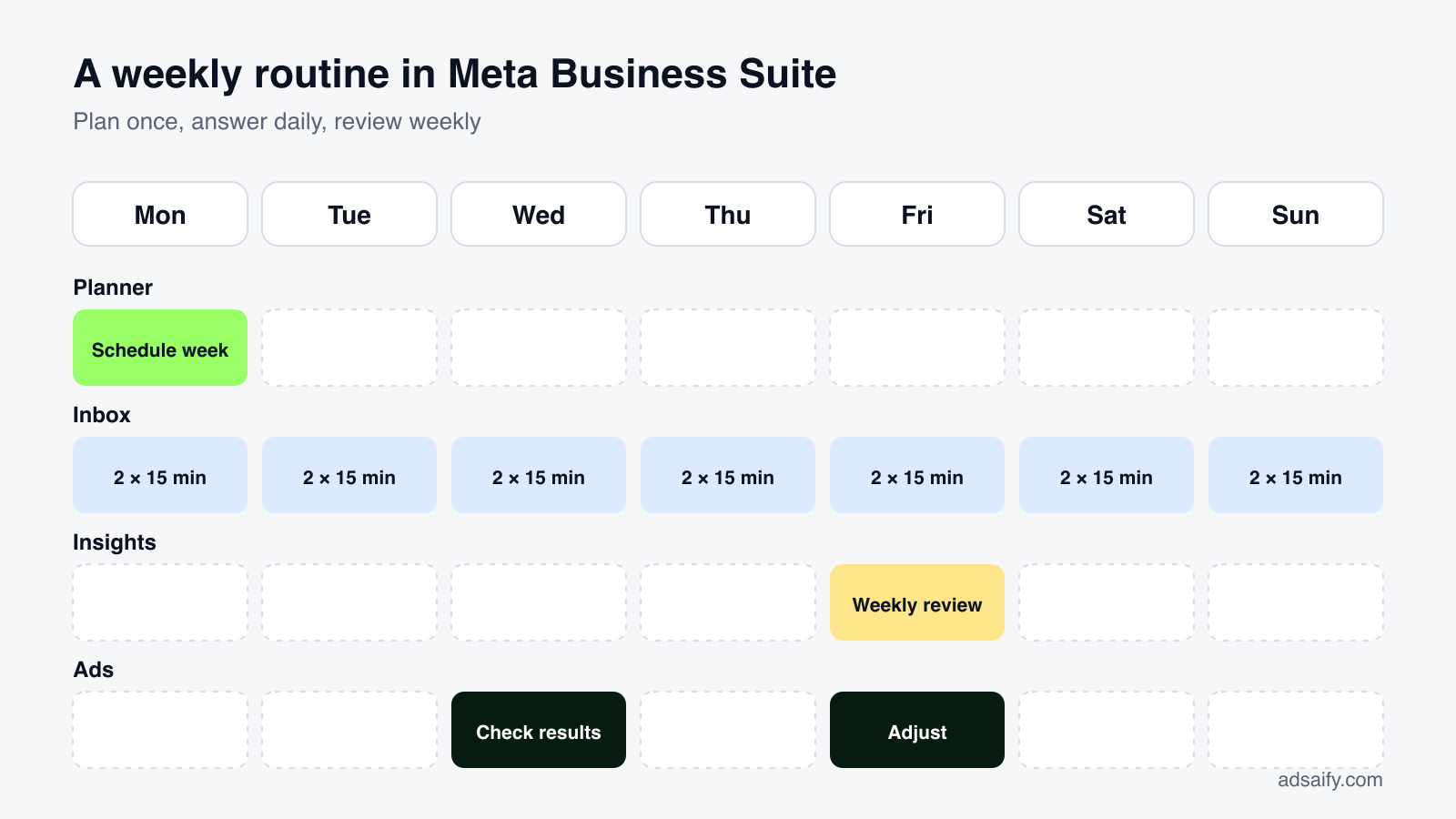
The tool saves time only if it replaces improvisation with a routine. This is an example for a small shop with one person handling social media; adjust the days to your own week.
| When | Where | What | Time |
|---|---|---|---|
| Monday | Planner | Schedule the week's posts, Stories and Reels for both accounts | 60–90 min |
| Every day, twice | Inbox | Answer messages and comments, label and assign | 2 × 15 min |
| Wednesday | Ads | Check results of running ads; pause anything clearly not working | 15 min |
| Friday | Insights | Review reach, interactions and follower change; note the best and worst post | 20 min |
| Once a month | Settings | Review people and access, check two-factor authentication, export insights | 20 min |
That is roughly five hours a week for a complete presence on two platforms, most of it in the inbox. The figures are an illustration of the structure, not a measurement; the point is that planning happens once and replying happens in fixed slots, not all day.
Which numbers in Insights are worth watching?
| Metric | What it tells you | What to do with it |
|---|---|---|
| Reach | How many unique accounts saw your content | Compare by format: which type of post reaches the most people? |
| Content interactions | Likes, comments, shares, saves and replies | Divide by reach to get an engagement rate you can compare between posts |
| Follows and unfollows | Net growth of the audience | Look for the posts or days that caused spikes in either direction |
| Link clicks | Traffic sent to your site | The number that connects social activity to sales |
| Audience demographics | Age, gender, cities and countries of followers | Check it against who actually buys; use it when choosing ad audiences |
| Messaging response time | How quickly conversations are answered | Set a target and check it weekly |
Avoid judging by single days. Compare the last 28 days with the 28 days before, and look at the three best posts in each period to see what they share.
Business Suite or a paid scheduling tool?
| Meta Business Suite | Third-party schedulers | |
|---|---|---|
| Price | Free | Monthly subscription, usually per user or per channel |
| Platforms | Facebook, Instagram, WhatsApp inbox | Also TikTok, LinkedIn, X, YouTube, Pinterest |
| Instagram and Facebook features | Native, including new formats first | Depends on what Meta's API allows |
| Inbox | Messages and comments for Meta apps | Often a combined inbox across networks |
| Approval workflows | Basic | Usually stronger: drafts, approvals, client views |
| Reporting | Good for Meta, exportable | Cross-network reports and custom dashboards |
If Facebook and Instagram are your only channels, Business Suite is enough and costs nothing. A paid tool earns its price when you publish to several networks or need formal approval steps for clients.
When should you move from boosting to Ads Manager?
Boosting is the right tool for one job: showing a post that already works to more people, quickly. It stops being the right tool when any of the following is true.
- You want sales, leads or registrations, not likes and reach.
- You want to test several images or texts against each other.
- You need to know the cost of each sale, not only the cost of each click.
- You want to exclude placements or countries that waste budget.
- You are spending enough that a 20% improvement would be worth an afternoon of work.
A worked example
Consider a shop that boosts one post for $10 a day for a week. It reaches several thousand people and collects likes, but the owner cannot tell whether any of the $70 produced an order, because the boost was optimised for engagement and the report shows reach and reactions. The same $70 in a sales campaign with the pixel in place would be optimised for purchases, split between two or three creatives, and reported as cost per purchase. The budget is identical; what changes is whether you learn anything from spending it. The numbers here are illustrative.
How do you keep a Business Suite account secure?
- Two admins, always. A single admin who loses their profile locks the whole business out.
- Two-factor authentication for everyone, enforced in the portfolio's security settings.
- A real business email on the portfolio, not a personal address that leaves with an employee.
- No shared logins. Each person uses their own profile and has their own access.
- Be suspicious of messages about "policy violations". Phishing aimed at Page admins is common. Meta's real notices appear inside Business Suite under Account Quality; do not follow links from messages or emails.
- Remove access when a contract ends, the same day.
What should your first 30 days look like?
- Week 1: set up. Create or tidy the portfolio, connect the Page and Instagram, add people with the right access, turn on two-factor authentication, write saved replies and automated messages.
- Week 2: plan. Schedule two weeks of content in Planner. Decide your inbox slots and stick to them.
- Week 3: measure. Record a baseline from Insights: reach, interactions, follower change, link clicks, response time.
- Week 4: improve and advertise. Make more of the format that performed best. If you have a clear offer, run your first campaign with a small daily budget and a conversion goal.
If you would rather not prepare each of these steps by hand, try it in Adsaify: your first ad is free, so there is nothing to lose. Create a free account.
Common problems and how to fix them
- "I can't see my Page." You are probably in a different business portfolio or logged in with a profile that has no access. Check the portfolio selector at the top of the menu, then ask a Page admin to grant access.
- "My Instagram account won't connect." Confirm it is a professional account, that you are an admin of the linked Facebook Page, and that the account is not already claimed by another portfolio.
- "Scheduled posts didn't publish." Reconnect the Instagram account; expired connections after a password change are the most common cause.
- "I'm locked out." If the only admin loses access to their personal profile, the business is stuck. Always keep at least two admins on the portfolio.
Frequently Asked Questions (FAQ)
1. Is Meta Business Suite free?
Yes. There is no subscription. You pay only for ads you choose to run.
2. Is Meta Business Suite the same as Business Manager?
No. Business Manager, now called the business portfolio, controls ownership and access to your assets. Business Suite is the workspace for content, messages and insights. You reach portfolio settings from inside Business Suite.
3. Do I need Business Suite to run ads?
No. Ads are created in Ads Manager or with the simplified Ads section in Business Suite. You do need a Facebook Page and an ad account.
4. Can I use Business Suite without an Instagram account?
Yes. It works with a Facebook Page alone; Instagram features appear once you connect an account.
5. Can I schedule Instagram Stories and Reels?
Yes, from Planner or the Create button, for professional accounts connected to the suite.
6. What happened to Creator Studio?
Meta moved its publishing and insights features into Business Suite, which is now the place for scheduling and content management.
7. Is there a Meta Business Suite app?
Yes, for iOS and Android. It covers the inbox, posting, notifications and basic insights.
How can you try this with Adsaify?
Adsaify analyses your business from your website address, drafts the campaign with an audience, ad copy, creative and a budget suggestion, and publishes it to your own Meta ad account once you approve.
- Your first ad is free: there is nothing to lose by trying.
- Your own ad account: the campaign runs in your Meta account and you stay in control.
- Preview by placement: see the ad as a Feed post, a Story and a Reel before it goes live.
Create a free account and try your first ad · Already have an account? Log in.